Mobile Digital Form
This digital power app form is easily accessible from both your personal mobile and a desktop. The font size adjust according to the size of the screen.
In this example a facilities technician identifies an electrical fault in a building corridor. Using the mobile form, they quickly log the issue, attach photos, add their signature and submit the report.
The app automatically generates a formatted maintenance report, which is emailed to the user and stored in a SharePoint directory.
This mobile form displays numerous capabilities:
Precise location is captured in a Map image.
View PDF’s from directly within the app.
Photo attachments
Photos captured can be drawn over, and act as mark-up images.
Location hierarchy (Site -> Building -> Floor -> Area)
Auto calculated priority level.
Automatic Word report generation.
Storage in SharePoint.
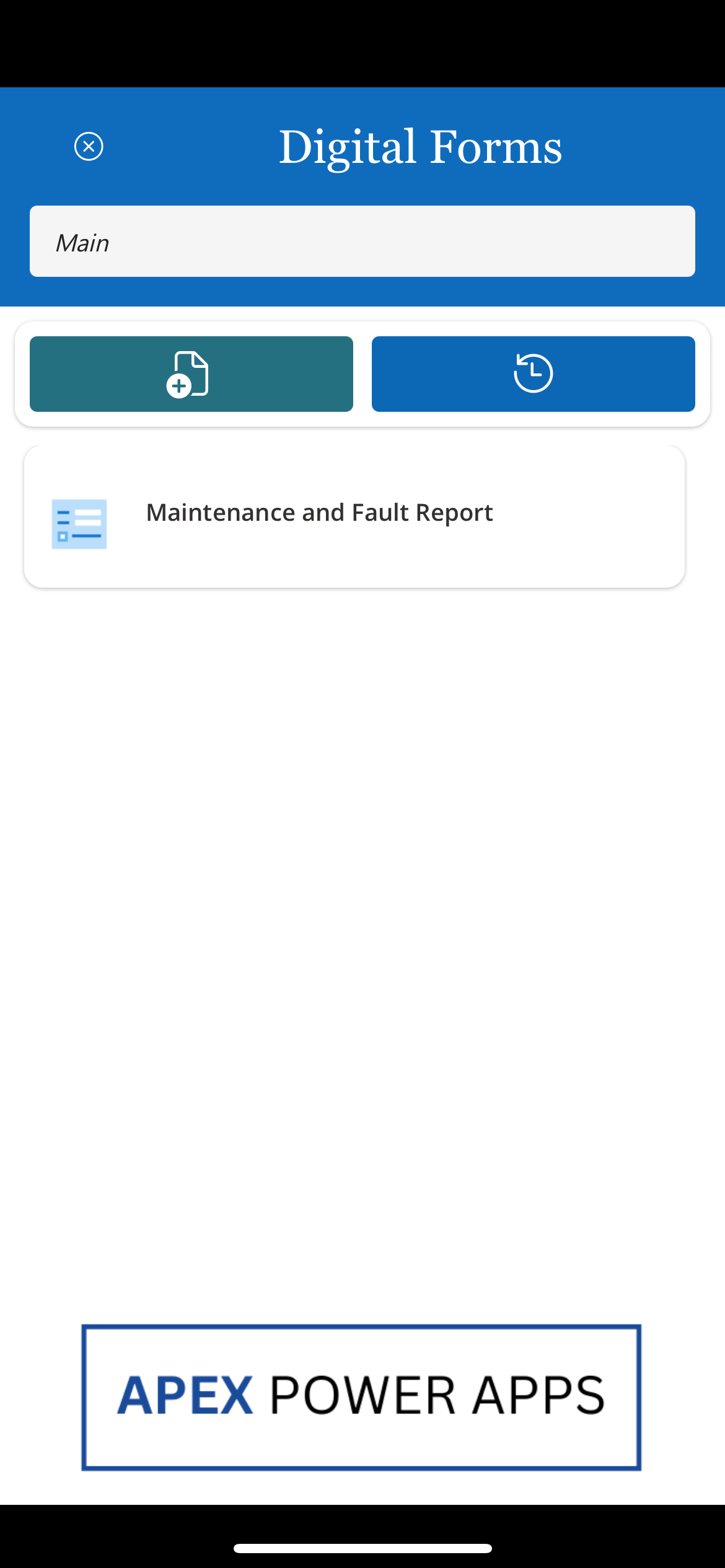
Home Screen. A search bar allows you to filter the list of reports.
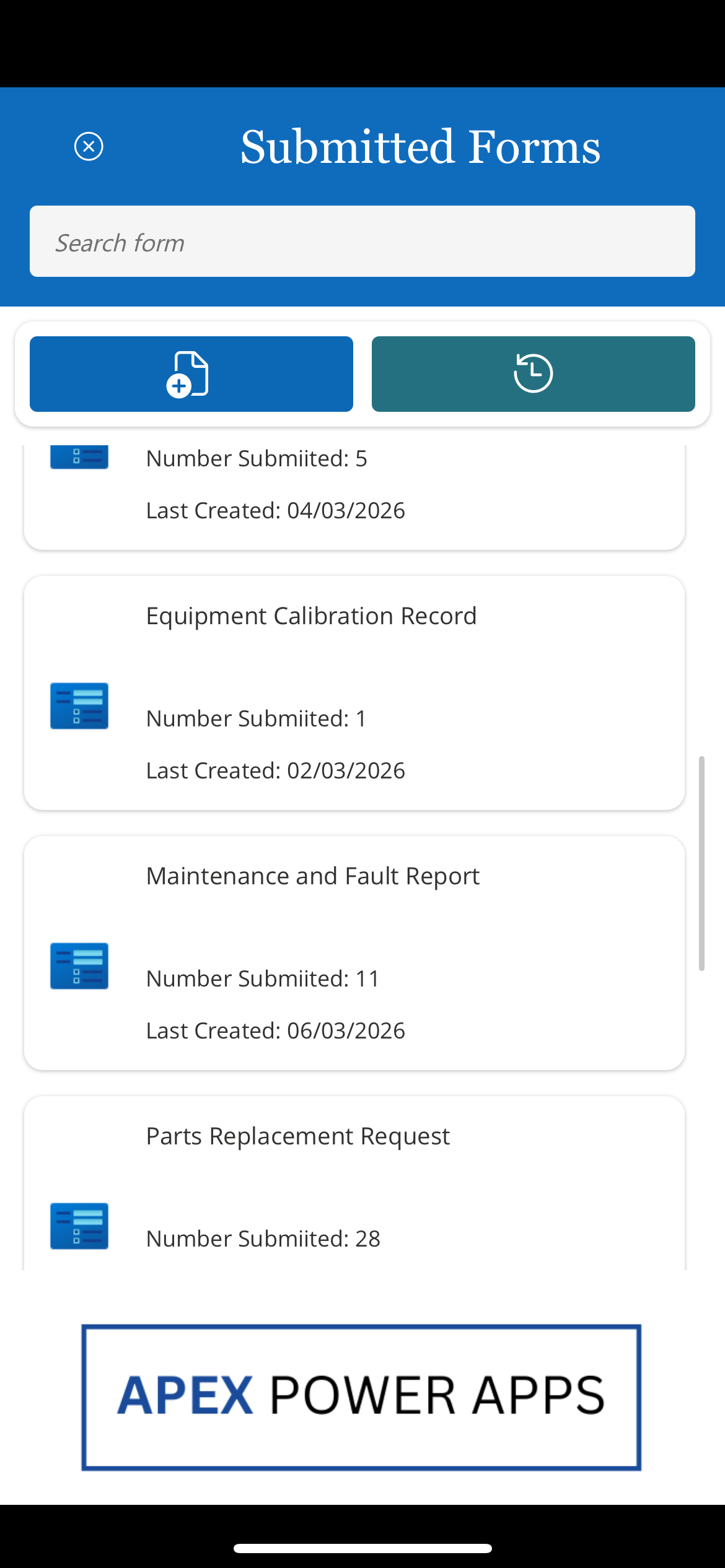
Submission History Screen. • Displays the quantity of submissions for each report, and the last submission date.
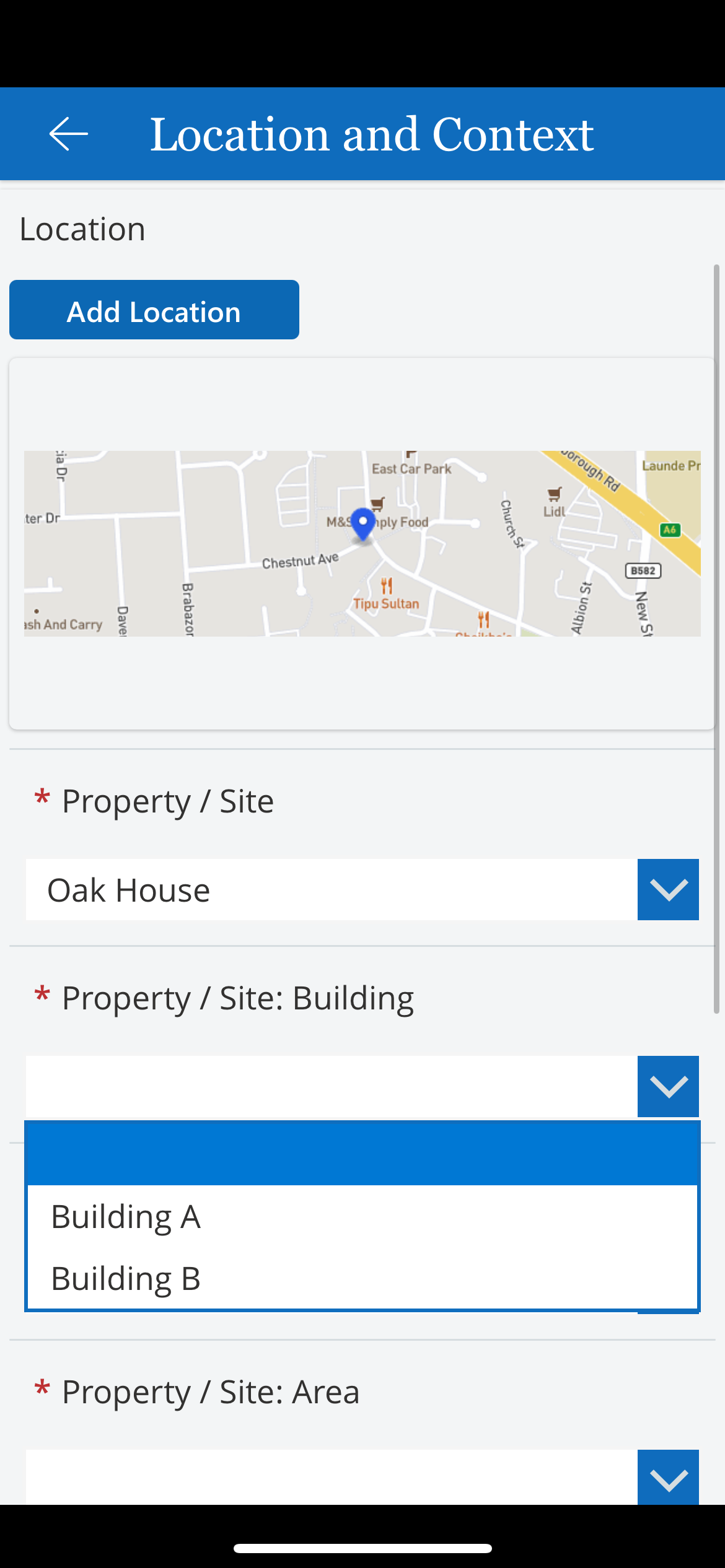
Home Screen -> Location and Context Screen • The app captures your current location. • The drop-down selections on the Location screen filter depending on the previous selected choices.
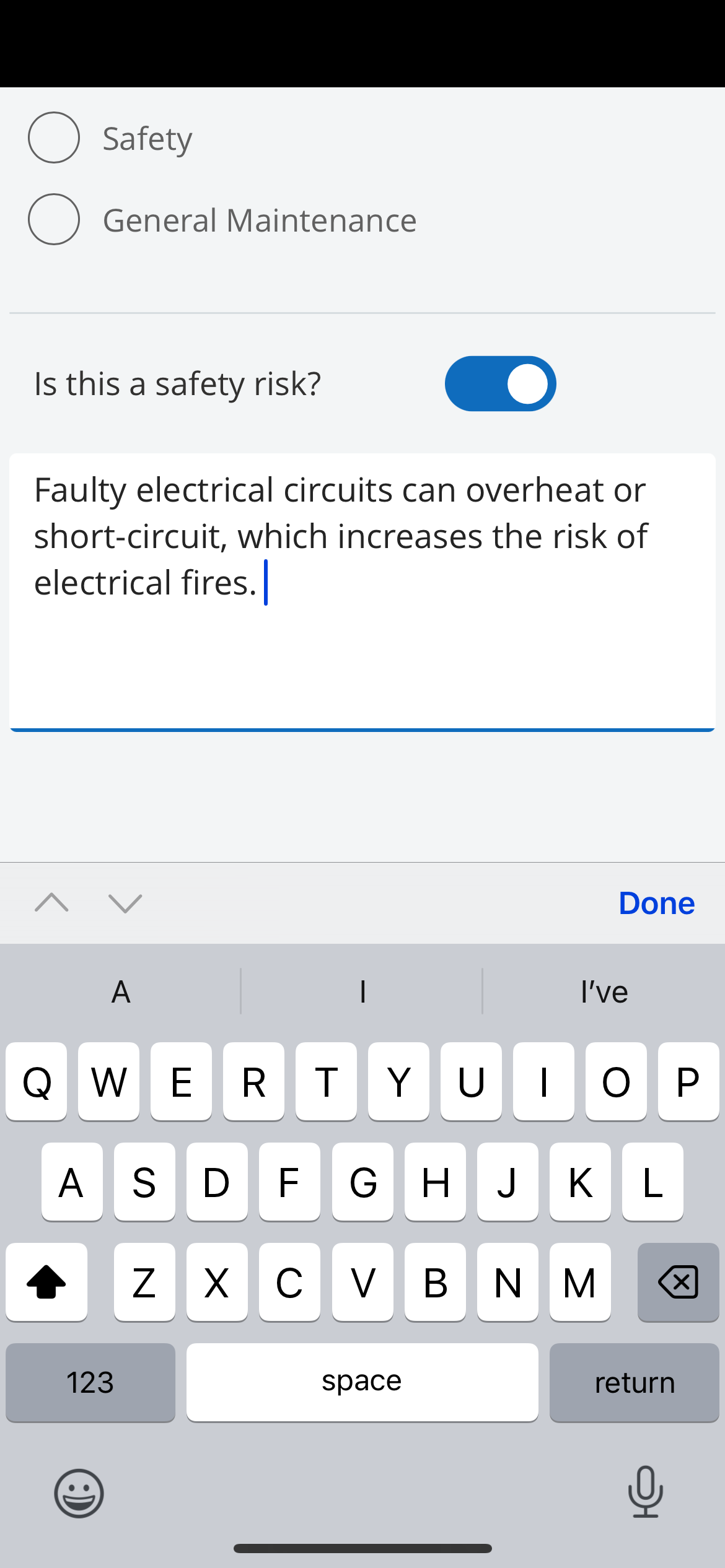
Home Screen -> Location and Context Screen • The safety risk text input box, only appears if the user selects the toggle icon.
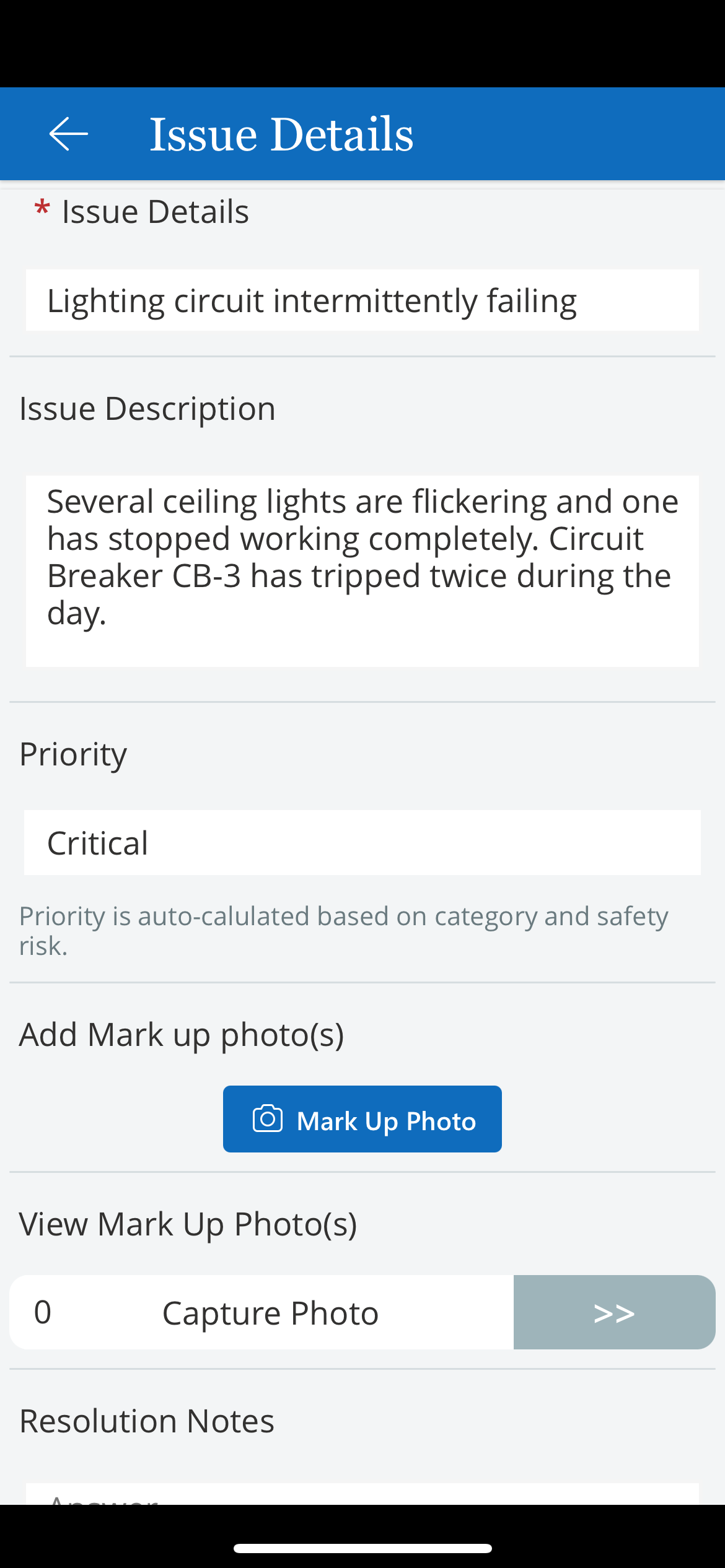
Home Screen -> Issue Details Screen
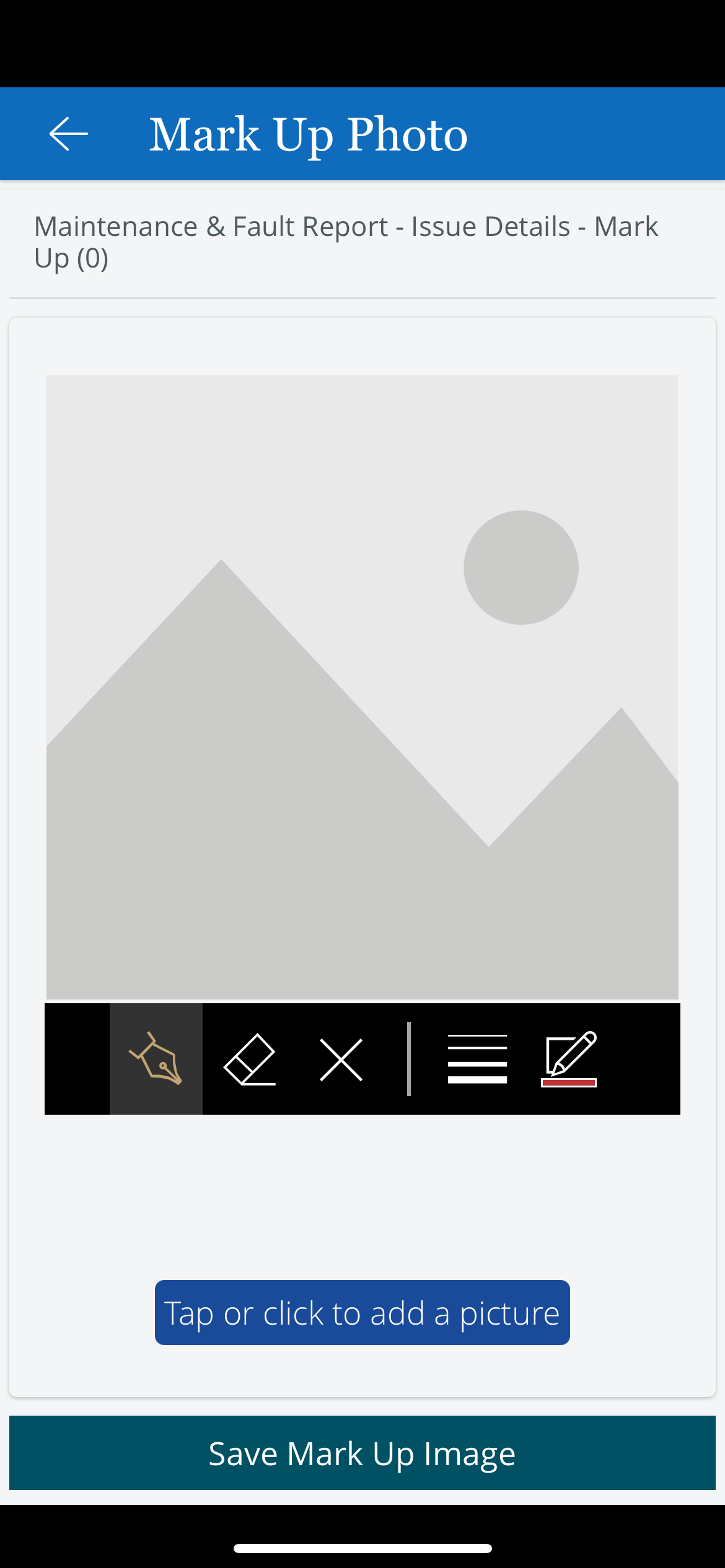
Home Screen -> Issue Details Screen -> Mark Up Photo Screen
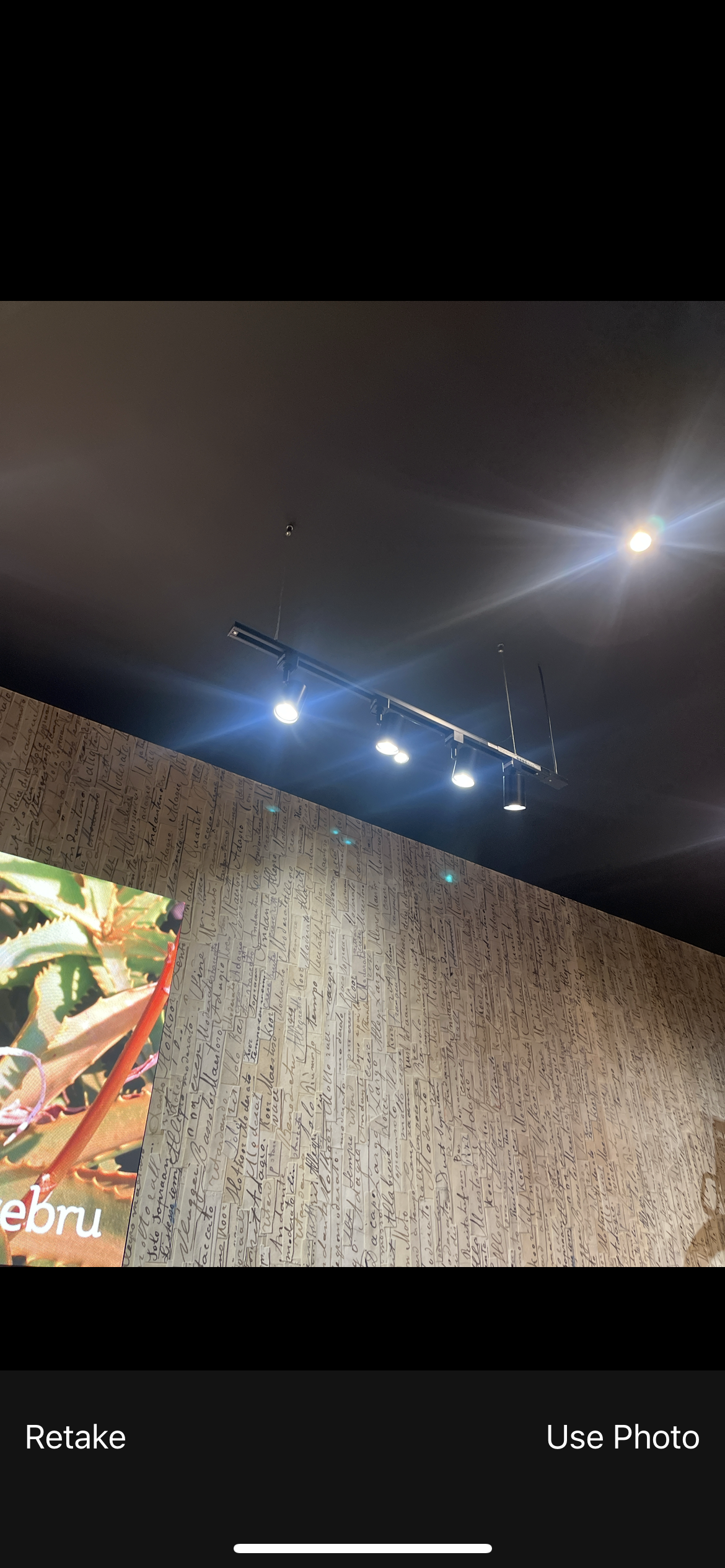
Home Screen -> Issue Details Screen -> Mark Up Photo Screen -> Mobile Camera
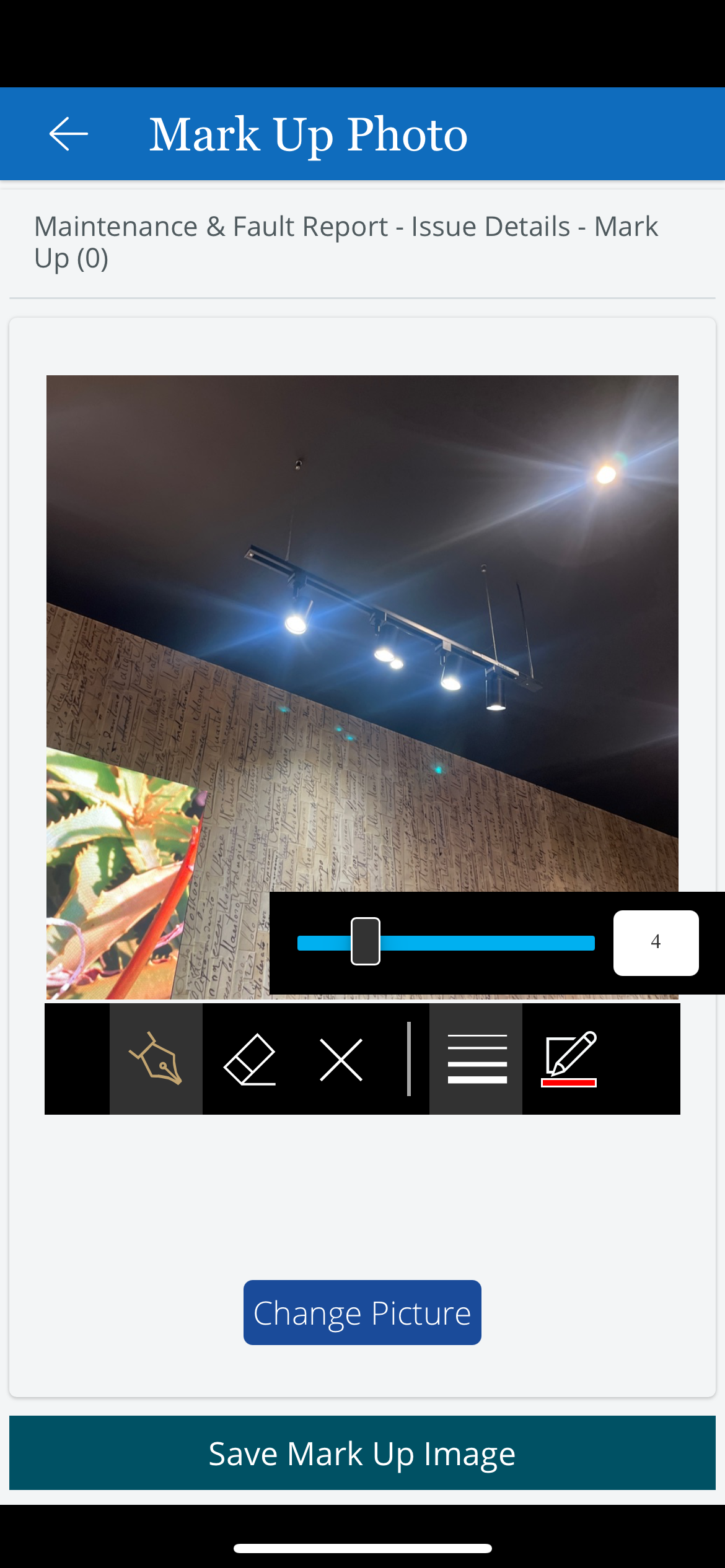
Home Screen -> Issue Details Screen -> Mark Up Photo Screen • Select the pen used to add a mark up
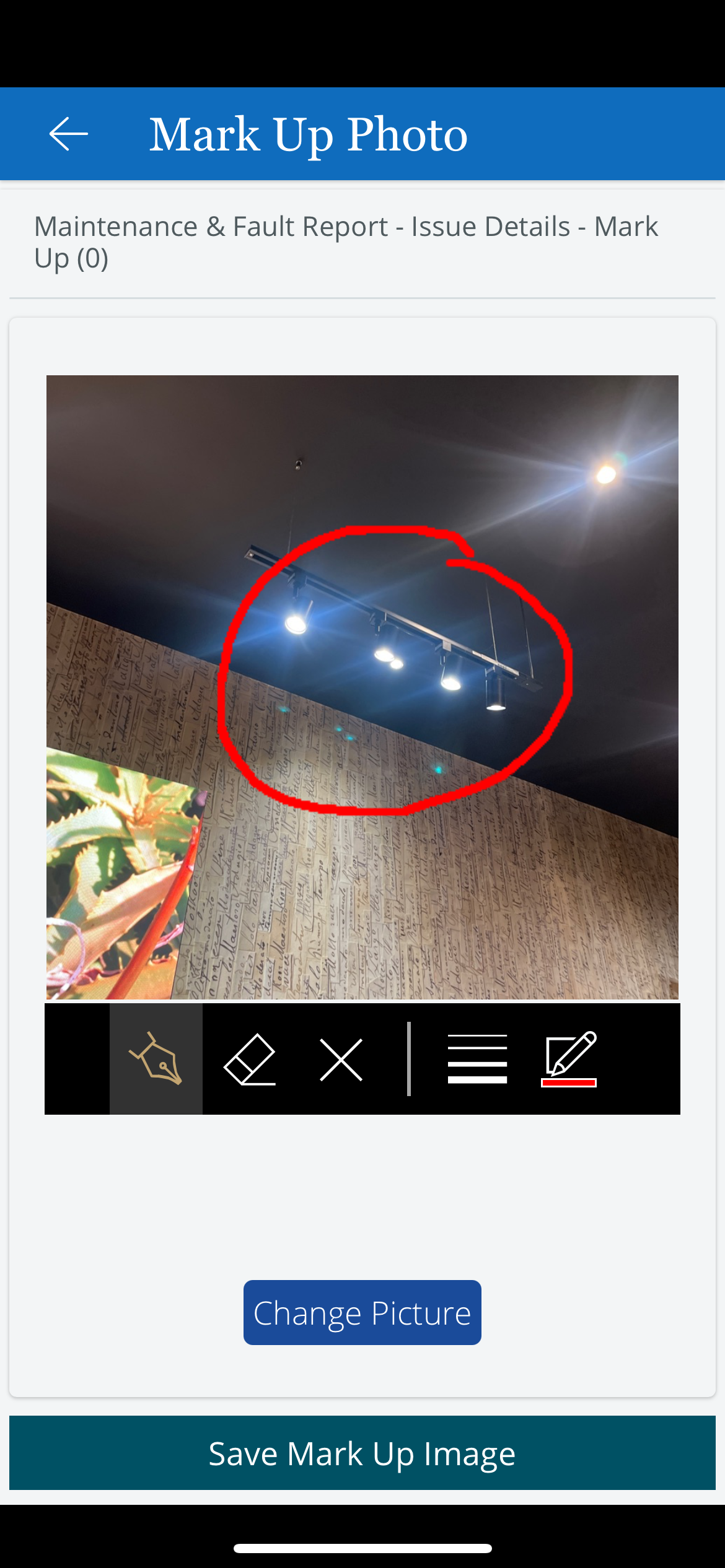
Home Screen -> Issue Details Screen -> Mark Up Photo Screen
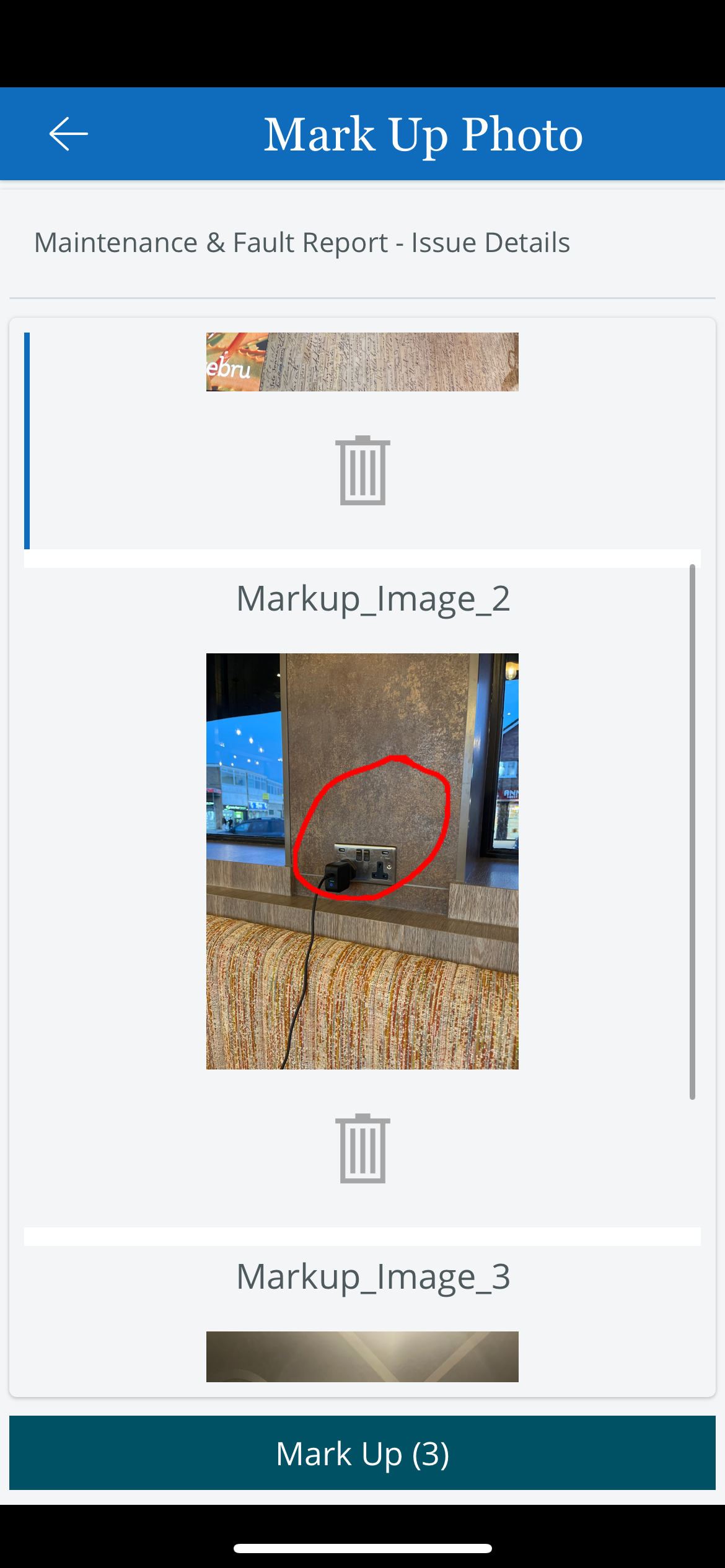
Home Screen -> Issue Details Screen -> View Mark Up Photos
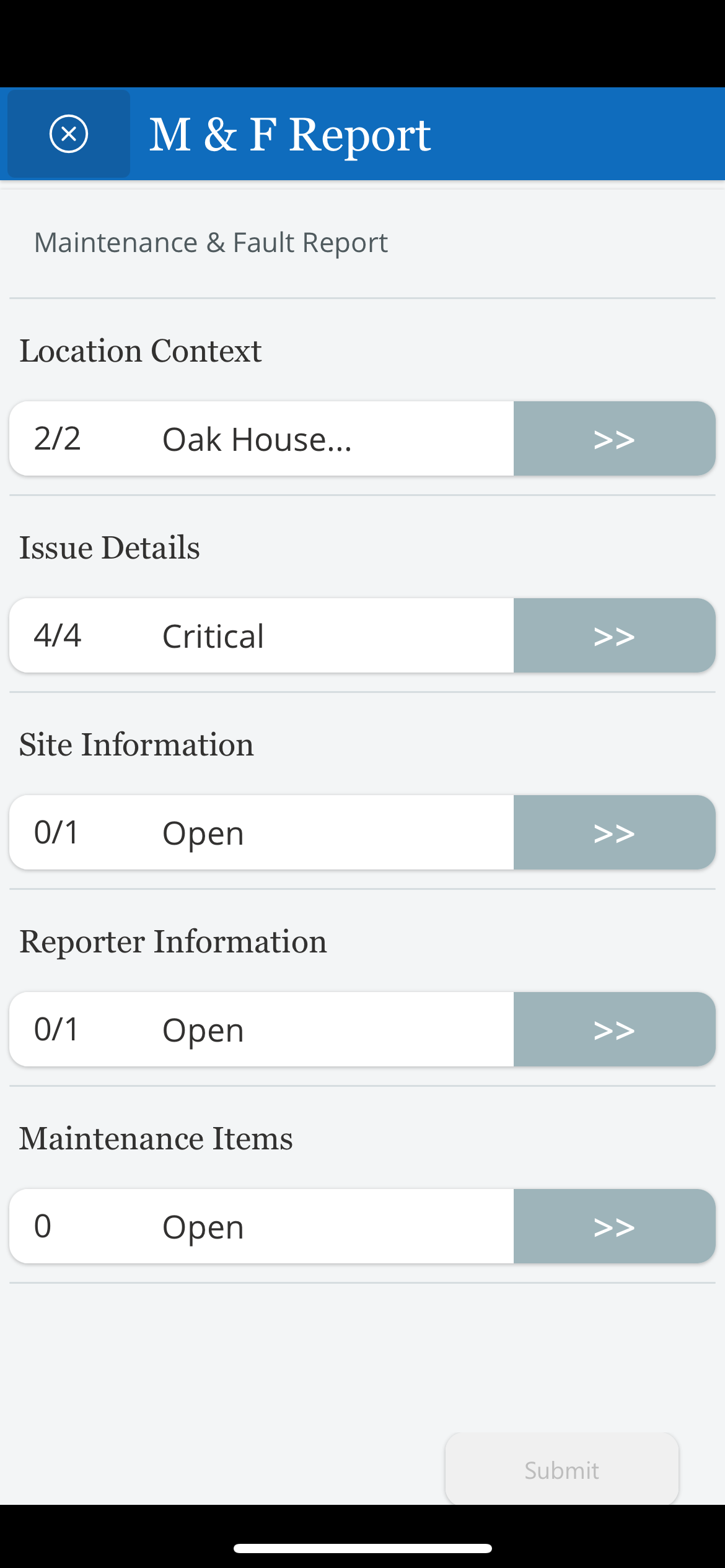
Home Screen The form has been partially filled. This swift user interface is aligned with the users journey.
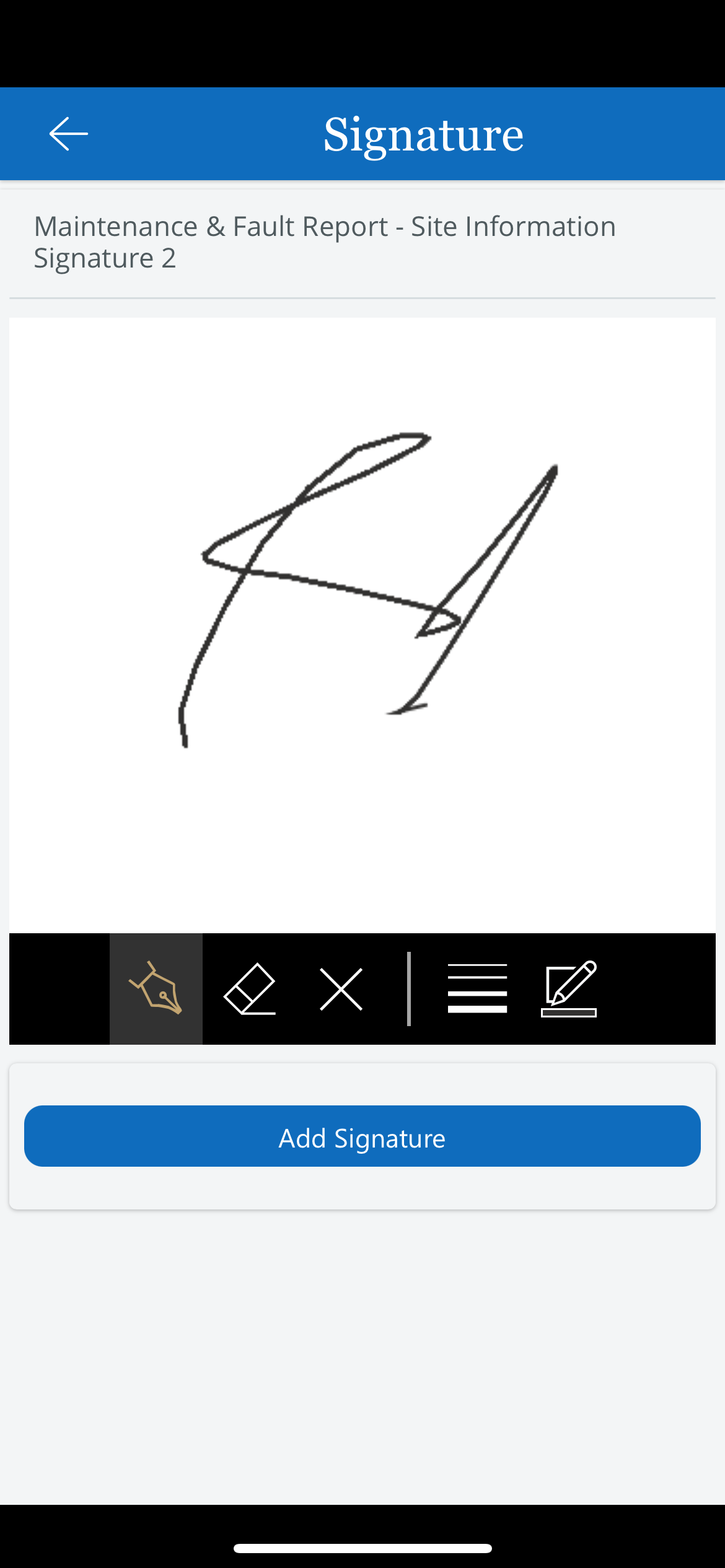
Home Screen -> Site Information Screen -> Add Signature
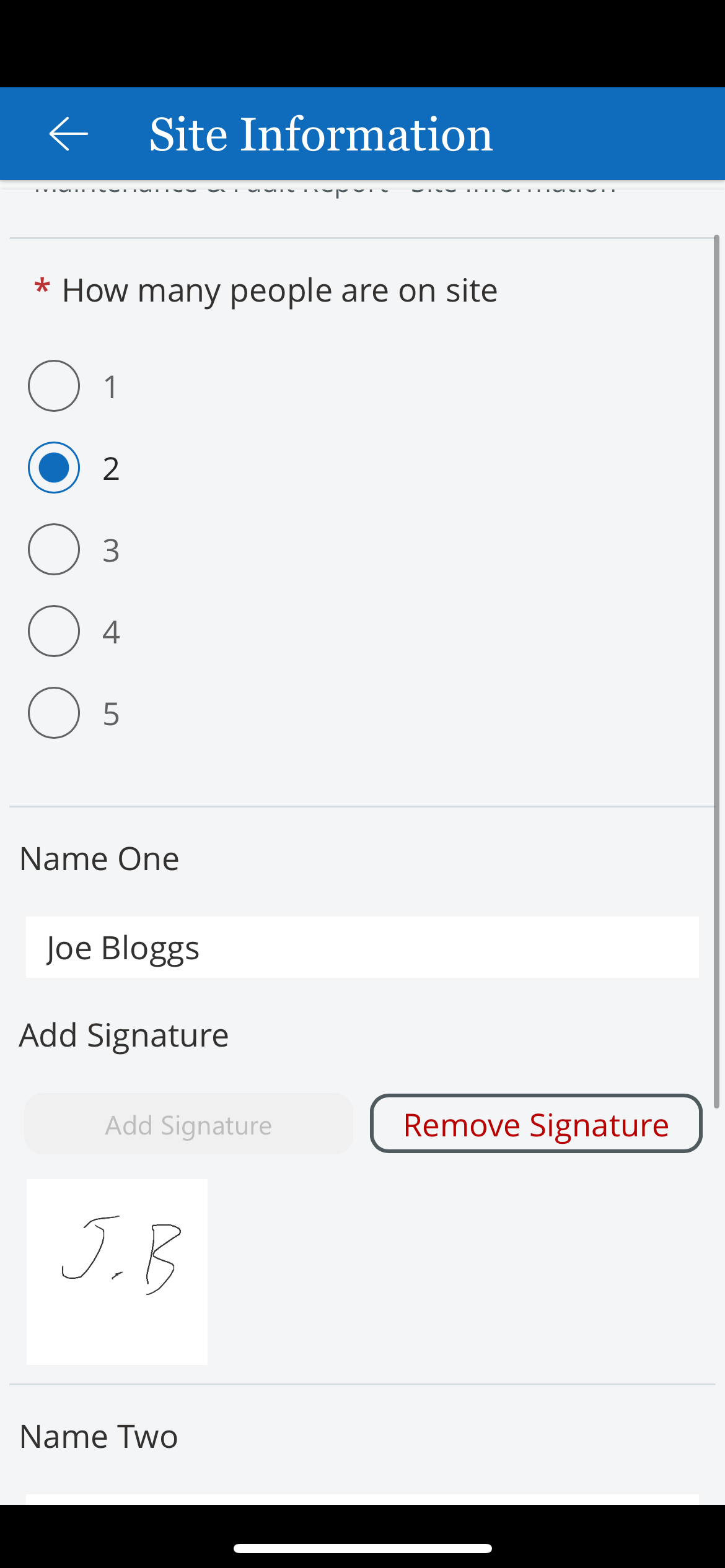
Home Screen -> Site Information Screen
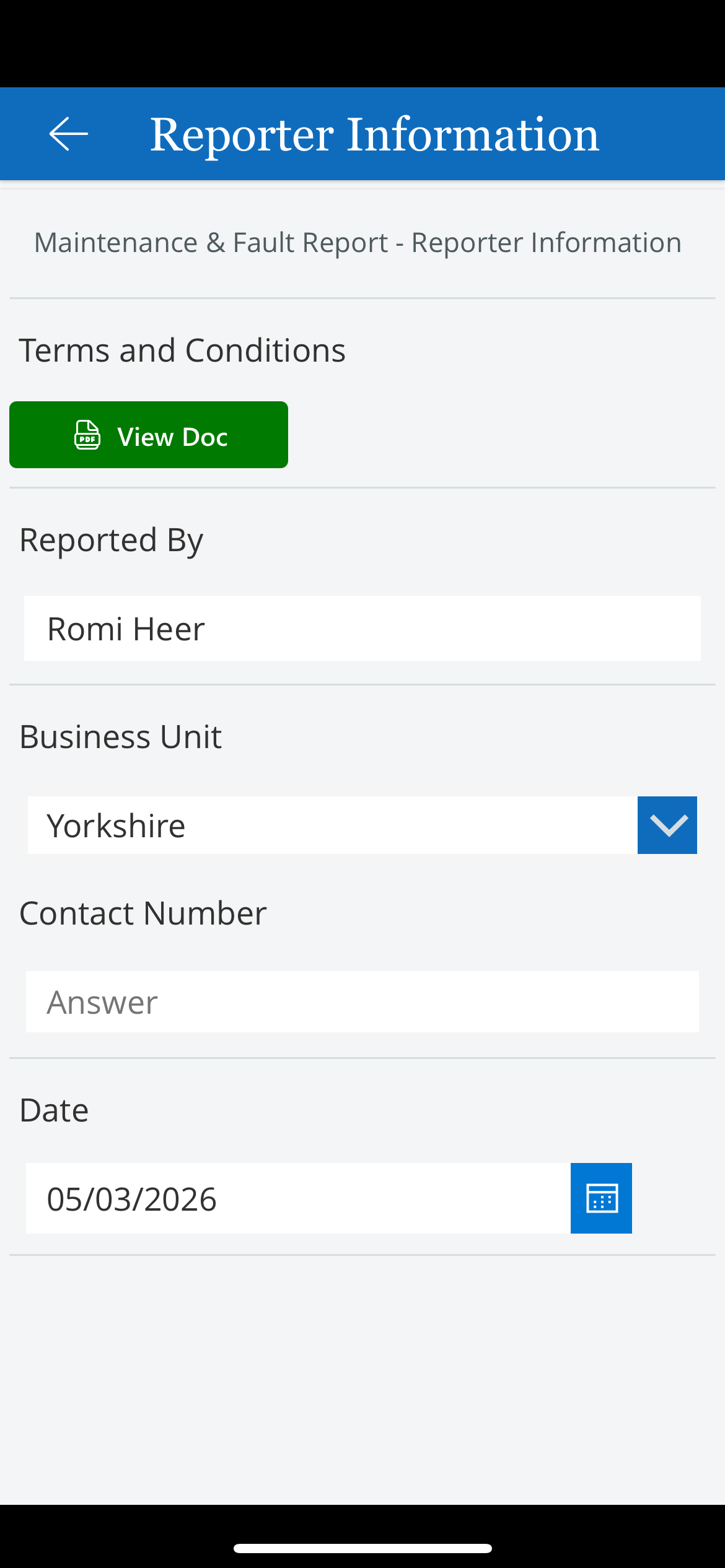
Home Screen -> Reporter Information Screen
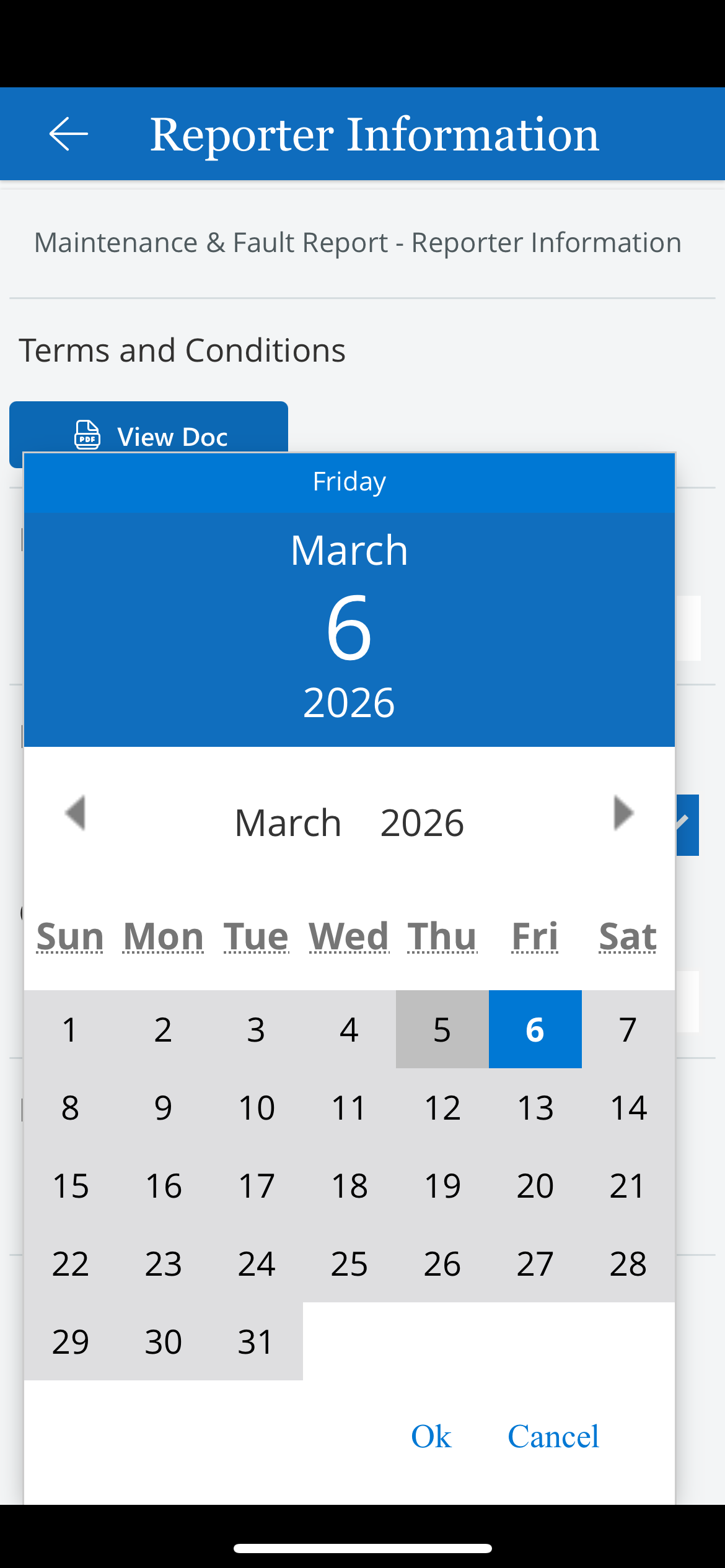
Home Screen -> Site Information Screen • Date Selection
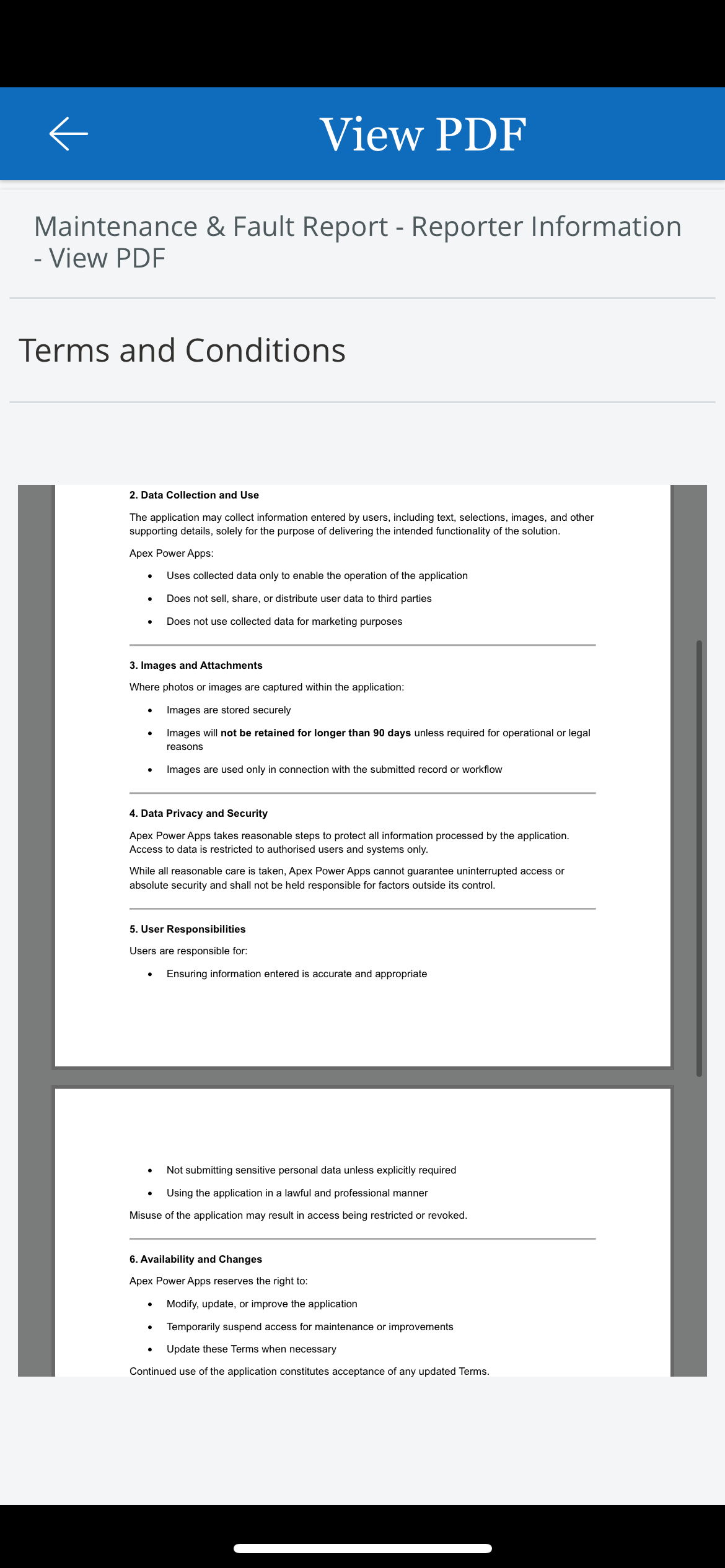
Home Screen -> Site Information Screen -> View PDF Doc i • The PDF displayed has been taken from a specific folder. Thus, the back office can change the PDF document whenever they like.
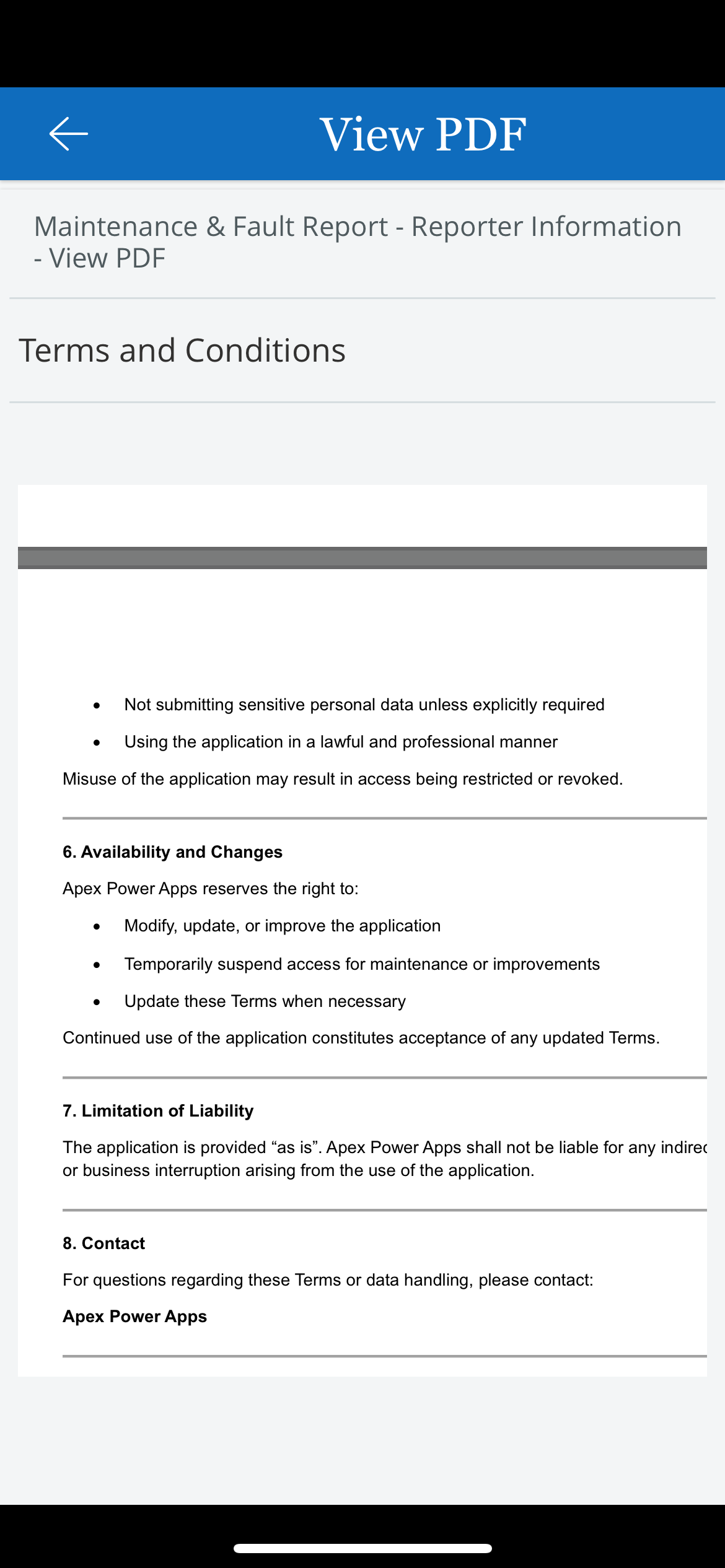
Home Screen -> Site Information Screen -> View PDF Doc ii
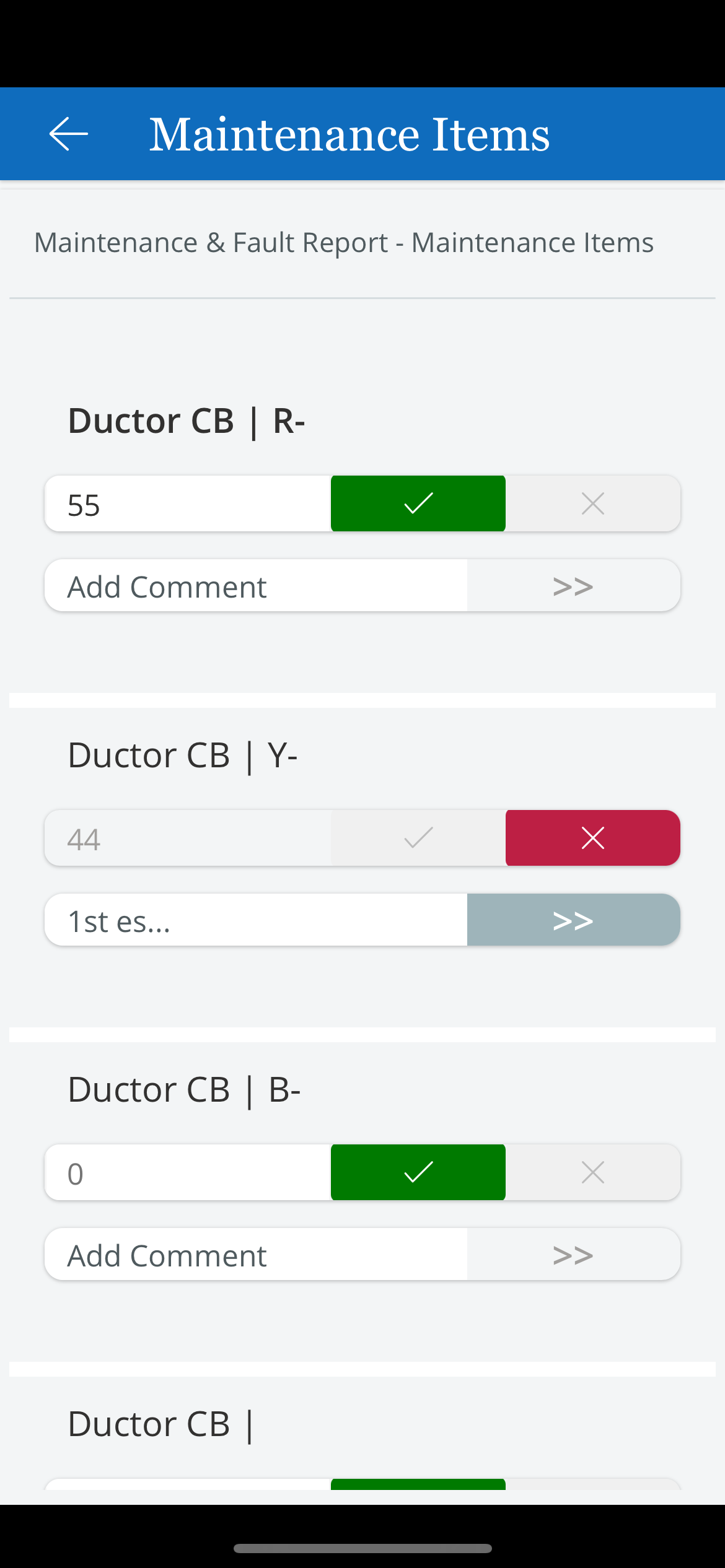
Home Screen -> Maintenance Items Screen
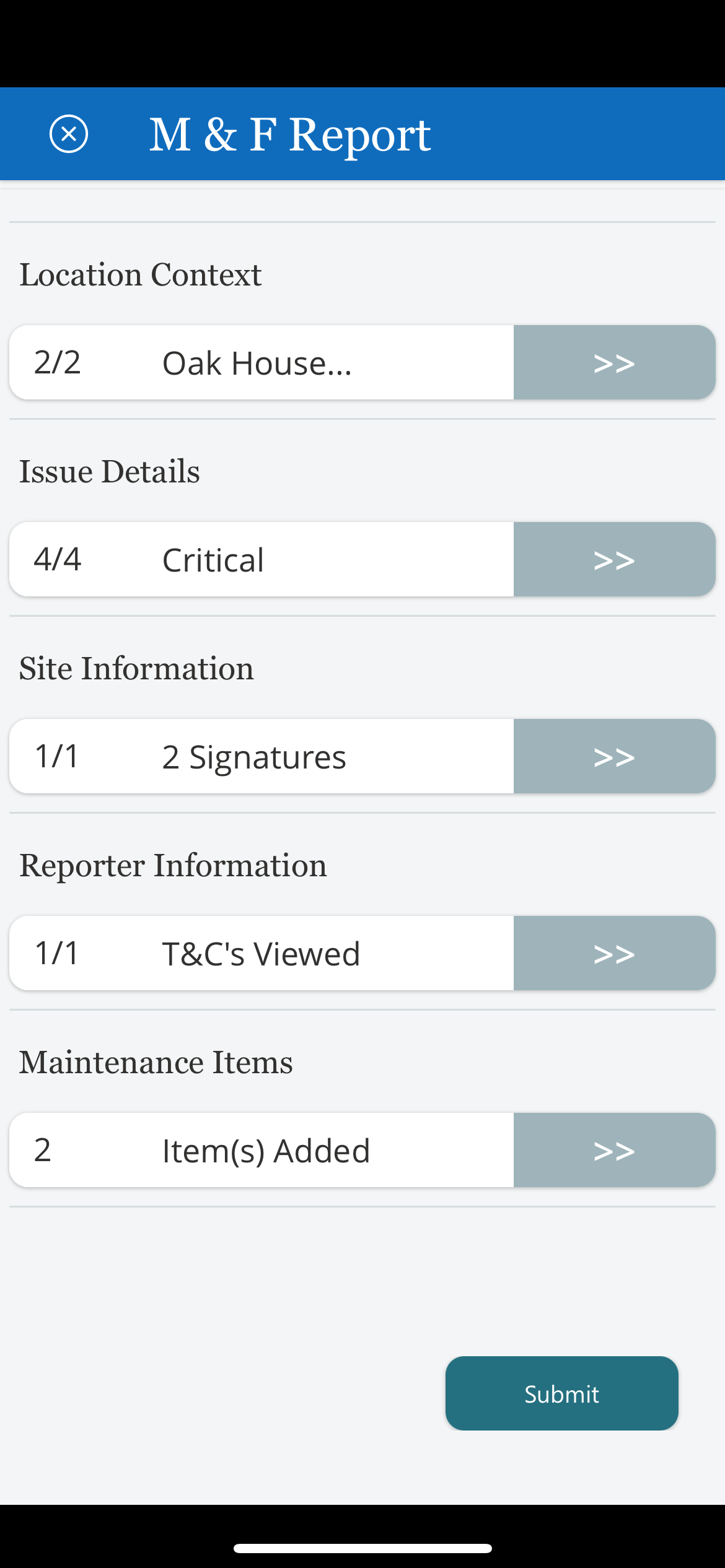
Home Screen • Once the required fields have been filled in. The Submit button becomes selectable.
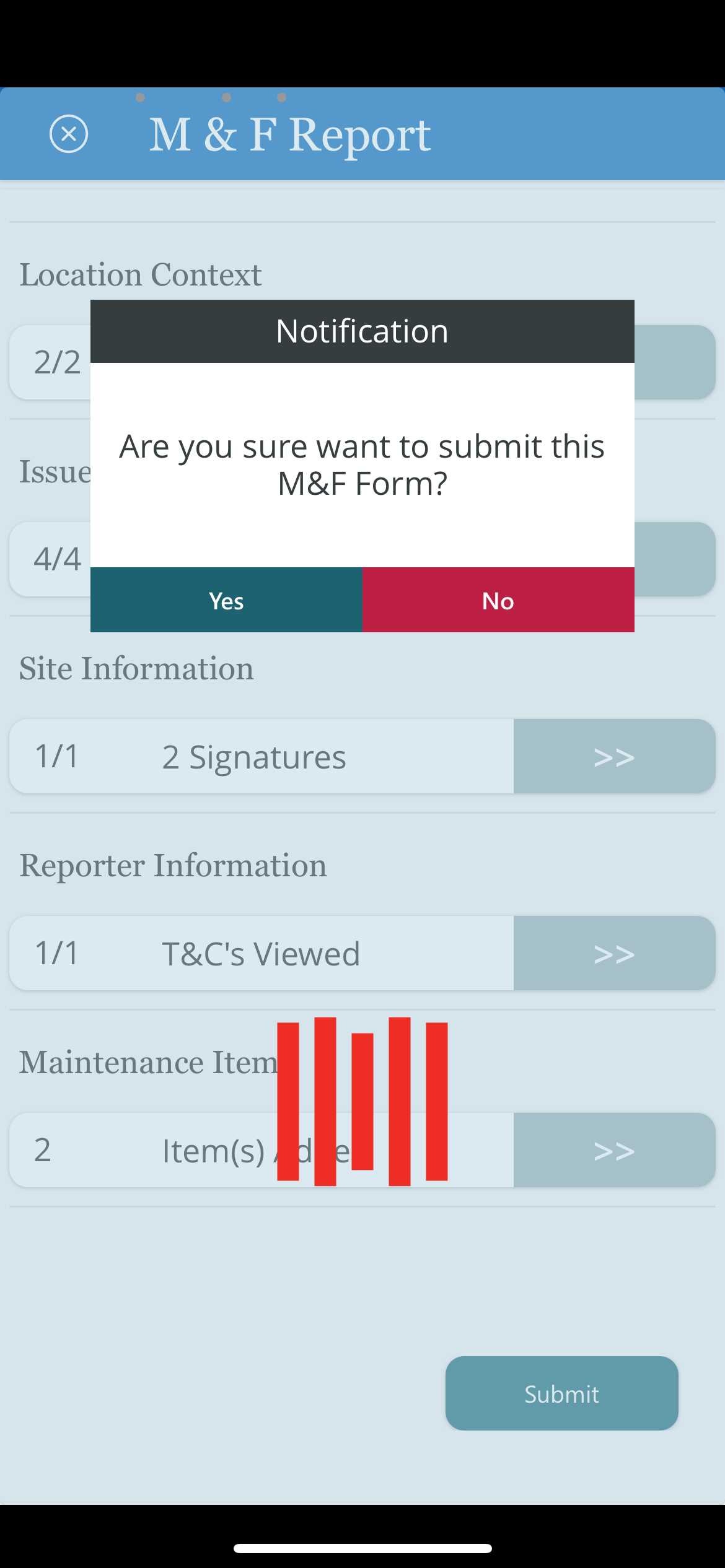
Home Screen • Form Submission
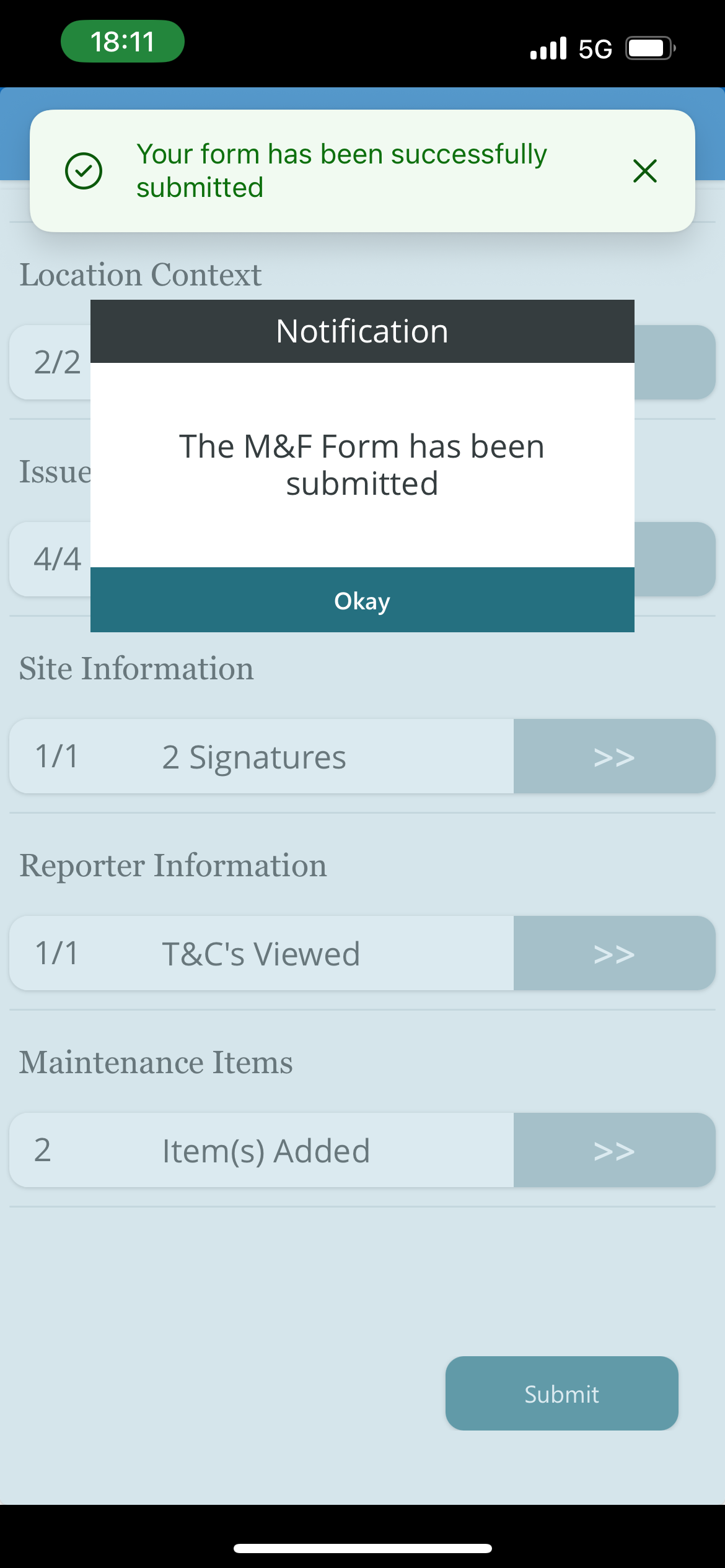
Home Screen • A notification informing the user that the form has been successfully submitted.
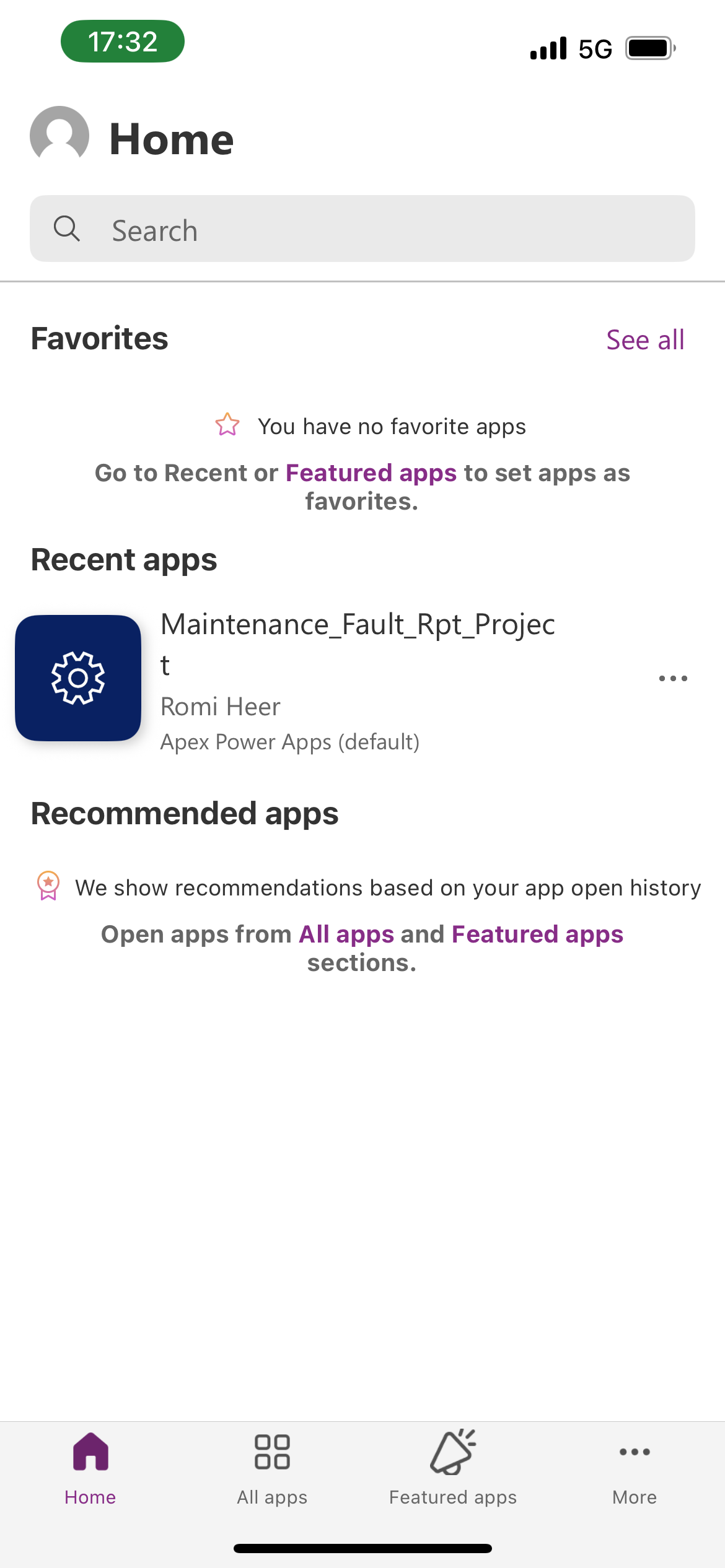
A screenshot of the mobile Power App start screen. • A list of accessible power apps will be displayed.
Power App loading screenshot
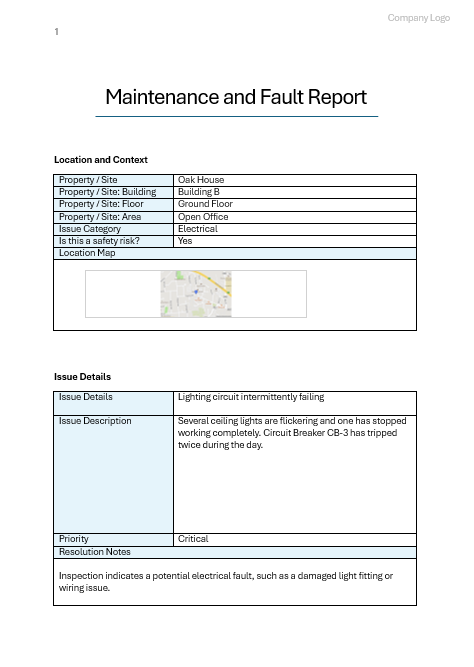
Maintenance and Fault Report - Generated Word Document - Page 1
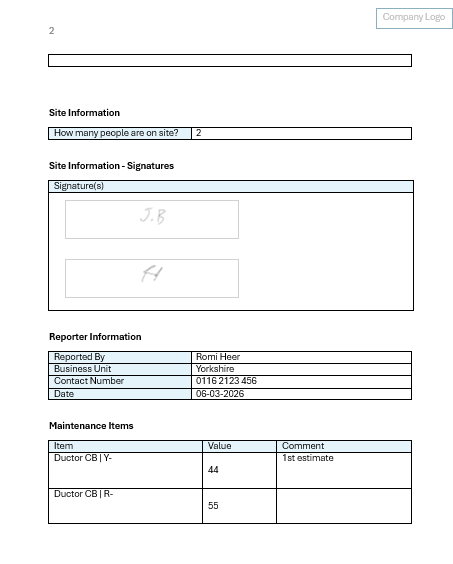
Maintenance and Fault Report - Generated Word Document - Page 2
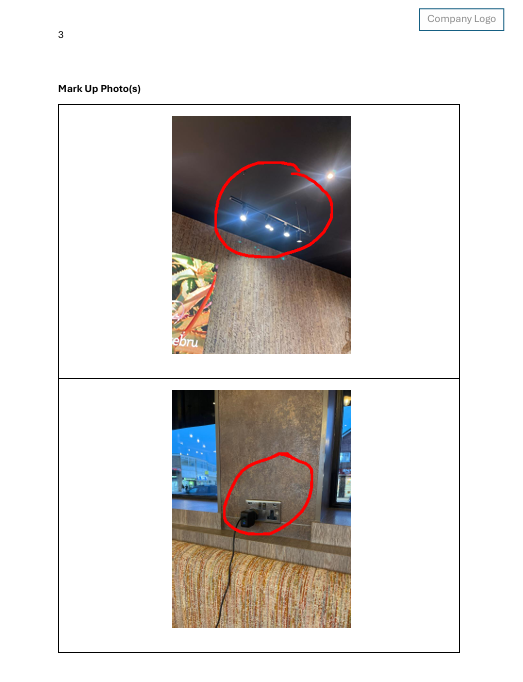
Maintenance and Fault Report - Generated Word Document - Page 3